Your profile page on America's Top Mugshot is where you manage everything about your account. From updating your name to verifying your contact information, setting your location, and controlling your password, it is all in one place.
This guide walks through every section of the profile page so you know exactly what each setting does and how to use it.
Getting to Your Profile Page
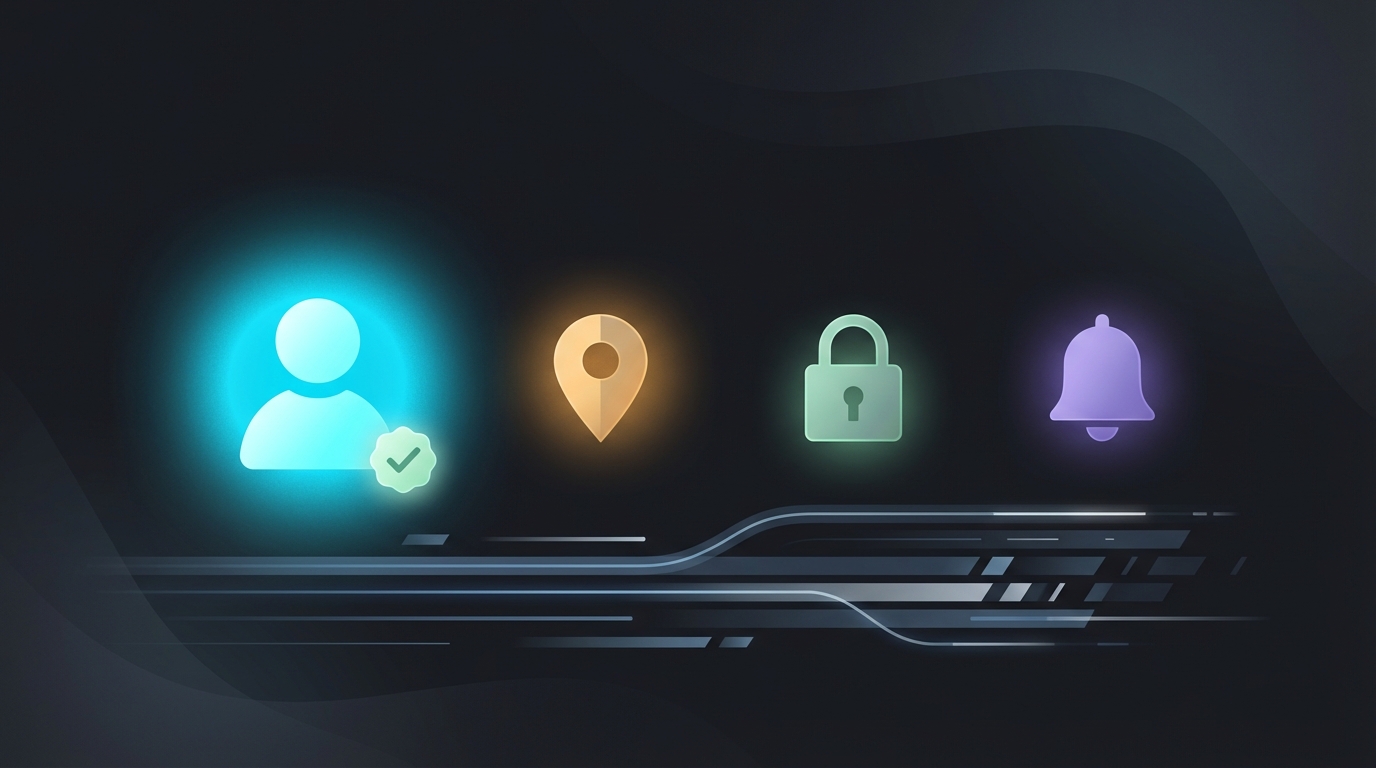
Once you are signed in, click on your profile icon or name in the top navigation bar. Select Profile from the menu. This takes you to your profile page, which is organized into four tabs:
- General — Your name, email, phone, and account role
- Location — Your state and county preferences
- Security — Password management
- Notifications — Email alert preferences
Let's go through each one.
The General Tab: Your Basic Information
The General tab is the first thing you see when you open your profile. It contains four pieces of information about your account.
Full Name
This is the name displayed on your account. You can change it anytime — just click the name field, type your new name, and save. Your name needs to be at least two characters long.
Email Address
Your email address is used for account recovery, notifications, and general communication. You can add or update your email from this section.
Next to your email, you will see a small badge:
- Verified (green badge) — Your email has been confirmed. You are all set.
- Not Verified (yellow badge) — Your email has not been confirmed yet.
To verify your email, we send a confirmation link to the address you provided. Click the link in that email and your badge turns green. Verification helps protect your account and ensures you receive important updates.

Phone Number
Adding a phone number is optional but gives you an extra layer of security. Like email, your phone number shows either a Verified (green) or Not Verified (yellow) badge.
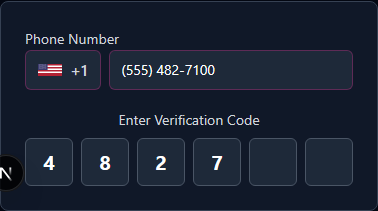
Phone verification works a bit differently from email. When you add or update your phone number, we send a six-digit code via text message. On your screen, you will see six separate input boxes — one for each digit. As you type each number, the cursor automatically moves to the next box. Enter all six digits and your phone is verified.
If you did not receive the code, you can request a new one. The code expires after a few minutes, so enter it promptly.
Account Role
At the bottom of the General tab, you will see your Account Role. For most users, this shows "User." If you are a site administrator, it shows "Administrator." This field is read-only — you cannot change it yourself.
The Location Tab: Personalize Your Experience
The Location tab lets you set your state and county. This is entirely optional, but it can make your browsing experience more relevant.
How Location Works
When you set a state and county, the platform uses this information to show you local mugshots first. Instead of seeing results from all over the country, your home area gets priority. You still have full access to every mugshot on the site — your location just influences the default sorting.
Setting Your Location
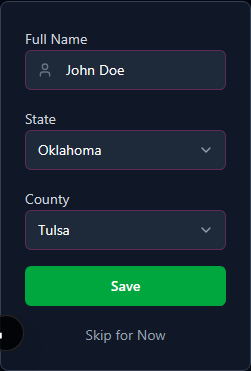
The Location tab has two dropdown menus:
- State — Pick your state from the dropdown list. This is optional.
- County — Once you select a state, the county dropdown updates to show only counties in that state. Pick your county if you want even more localized results.
The county dropdown depends on the state you choose. If you change your state, the county list refreshes to match. If you do not want to set a county, just leave it blank — setting only your state still helps personalize your results.
You can change or remove your location at any time. Clearing both fields returns your browsing to the default view with no location preference.
The Security Tab: Managing Your Password
The Security tab is where you handle your password. What you see here depends on how you created your account.
If You Signed Up with Email and Password
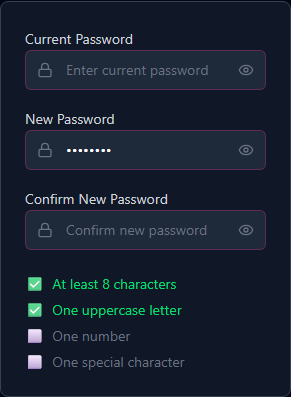
You will see a "Change Password" section. To update your password:
- Enter your new password in the field provided.
- As you type, a checklist of requirements appears below the field. Each requirement turns green with a checkmark as you meet it. This lets you see in real time whether your new password is strong enough.
- Once all requirements are met, confirm the change.
Important: After you change your password, you will be automatically signed out for security. This is normal. Just sign back in with your new password. This automatic sign-out ensures that if someone else gained access to your account, changing the password immediately locks them out.
If You Signed Up with Google or Phone
If you created your account using Google sign-in or phone number verification, you may not have a password set up yet. In that case, the Security tab shows "Set Up Password" instead of "Change Password."
Setting up a password for the first time works the same way — enter your new password, watch the checklist turn green as you meet each requirement, and confirm. The one difference is that you will not be signed out after setting your first password. Since this is adding a new sign-in option rather than replacing a compromised one, there is no security reason to force a logout.
Once you set a password, you can use it alongside your Google or phone sign-in. Having multiple ways to access your account is always a good idea.
The Notifications Tab: Control What Emails You Get
The Notifications tab lets you choose which email alerts you want to receive from America's Top Mugshot. This section is currently being built out, but here is what it will include.
Available Notification Types
You will be able to toggle each of these on or off independently:
- Weekly Voting Alerts — A roundup of popular mugshots and voting activity each week.
- Daily Winners — The top-rated mugshots from the previous day.
- Monthly Championships — Highlights from monthly mugshot competitions.
- Local State Updates — New mugshots and activity from your state (based on the state you set in the Location tab).
- County Alerts — Specific updates from your county.
Frequency Options
For each notification type, you can choose how often you want to hear from us:
- Immediate — Get notified as soon as something happens.
- Daily — Receive a single daily digest.
- Weekly — Get a weekly summary instead of individual alerts.
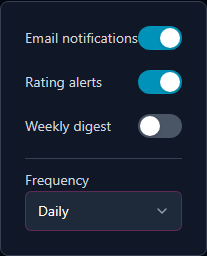
These notification controls are still being rolled out. As new notification types become available, they will appear in this tab. You will never receive emails you did not opt into.
Tips for Keeping Your Account Secure
While you are on your profile page, here are a few simple things you can do to keep your account safe:
- Verify your email and phone — Verified contact information makes account recovery much easier if you ever get locked out.
- Use a strong password — The password checklist is there to help. Make sure every item turns green before you save.
- Keep your email current — If you change email addresses, update it here so you do not lose access to password resets and notifications.
- Set up a password if you signed in with Google — Having a backup sign-in method means you can still access your account if anything changes with your Google account.
Quick Reference
Here is a summary of what each profile tab does:
- General — Edit your name, add and verify your email and phone number, and see your account role.
- Location — Set your state and county so local mugshots appear first when you browse.
- Security — Change your password or set one up for the first time. Password changes sign you out; first-time setup does not.
- Notifications — Choose which email alerts you receive and how often. More options are being added over time.
Everything on your profile page is designed to be changed whenever you need. Nothing is permanent, and you are always in control of your information. If you run into any issues or have questions about your account, do not hesitate to reach out to our support team.