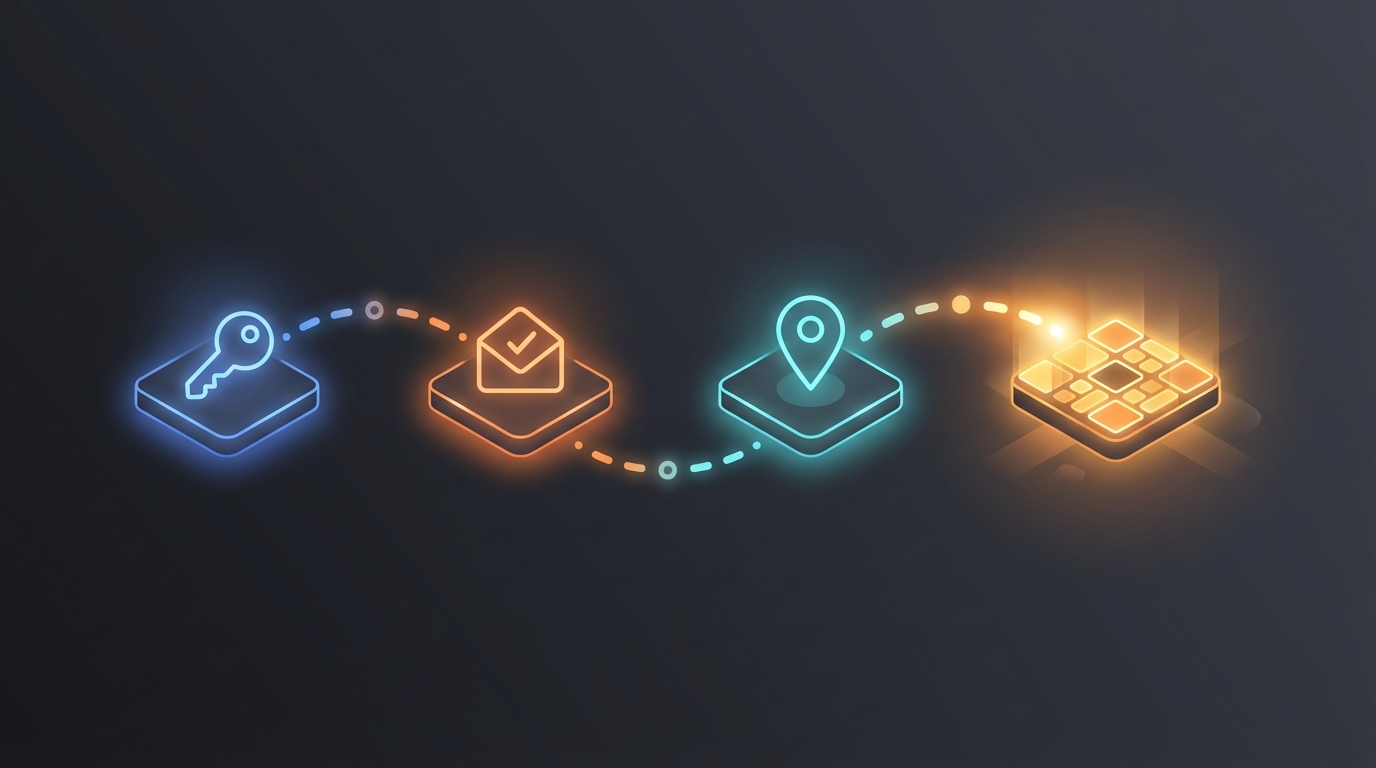
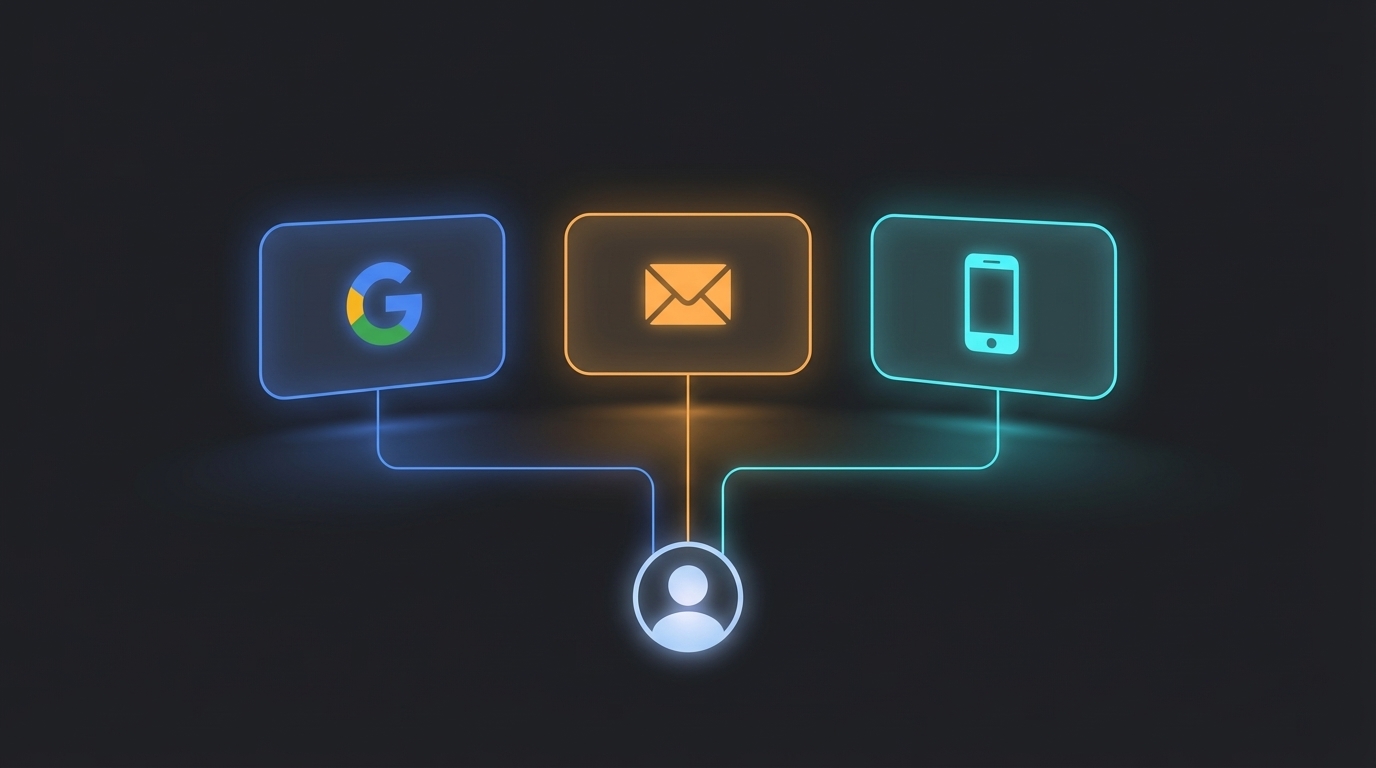
America's Top Mugshot gives you three ways to create an account: Google, email and password, or phone number. They all create the same account with the same features — the only difference is how you sign up and log in. This guide walks through each method so you can pick the one that suits you best.
Quick Comparison: All Three Methods at a Glance
Here's a fast overview before we dive into the details:
- Google — One click. No password to create. No email to verify. The fastest option by far.
- Email and Password — Enter your email, create a password, then verify your email by clicking a link in your inbox. Takes about two minutes.
- Phone Number — Enter your mobile number, receive a text message with a 6-digit code, type it in, then create a password. Also about two minutes.
No matter which method you choose, you end up with the same account. You can rate mugshots, add tags, set your location, and use every feature on the platform. For a broader walkthrough of the full signup-to-browsing process, see our getting started guide.
Signing Up with Google
If you have a Google account (Gmail, Google Workspace, or any Google-connected email), this is the easiest way to get started.
How It Works
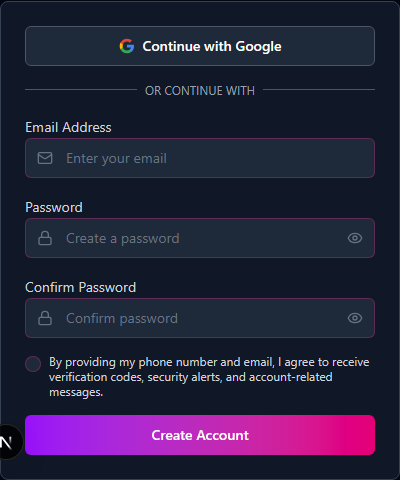
- Click "Continue with Google" on the signup page.
- Pick your Google account — If you're already signed into Google in your browser, just select the account. If not, sign into Google when prompted.
- You're done — Your account is created instantly. Your name and email are pulled from Google automatically.
What Makes Google Different
- No password needed — You don't create a separate password for our site. Google handles your sign-in.
- No verification step — Since Google already knows your email is real, we don't need to send you a verification link.
- Your name is filled in — The name on your Google account is used for your profile automatically.
- One click to log in later — Every time you come back, just click "Continue with Google" again. No typing required.
Best for: Anyone who wants the fastest signup with the least typing. If you already use Google for other websites, this will feel familiar.
Signing Up with Email and Password
This is the traditional method. You create a dedicated password for your account on our platform.
How It Works
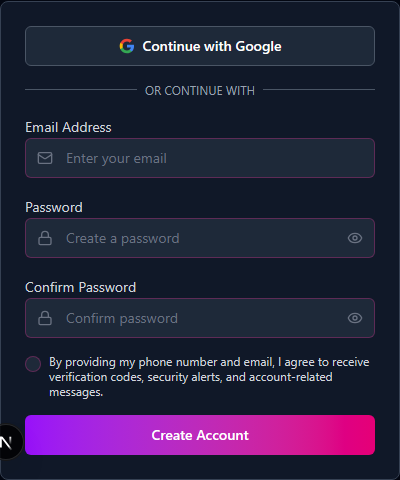
- Enter your email address — Use any email you have access to. You'll need to check this inbox in the next step.
- Create a password — Your password must be at least 8 characters and include:
- At least one uppercase letter (A through Z)
- At least one lowercase letter (a through z)
- At least one number (0 through 9)
- At least one special character (such as !, @, #, $, %, ^, &, or *)
- Click the verification link — Open your email inbox and look for a message from us. Click the link inside to confirm your address. This link stays active for 24 hours.
- Your account is ready — After clicking the link, you can start using the platform.
What Makes Email Different
- You control your password — You create and manage your own password, separate from any other service.
- Verification required — You can't skip the email verification step. This confirms that you actually own the email address.
- Password to remember — You'll need to type your email and password each time you log in (unless your browser saves it for you).
Best for: People who prefer not to connect third-party accounts, or anyone who likes having a dedicated password for each site they use.
Tips for a Strong Password
The requirements might seem strict, but they're there to keep your account safe. Here are a few examples of what works:
- Good:
Mugshot2026!— Has uppercase (M), lowercase (ugshot), a number (2026), and a special character (!) - Good:
myP@ssw0rd99— Meets all four requirements - Bad:
password— No uppercase, no number, no special character - Bad:
12345678— No letters or special characters
Signing Up with Your Phone Number
If you'd rather use your mobile number instead of email, this option is for you.
How It Works
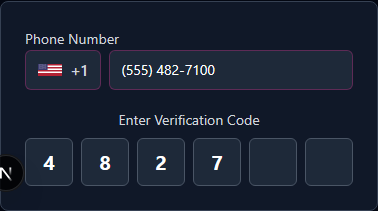
- Enter your phone number — Type in your US mobile number on the signup page.
- Receive a text message — We'll send a 6-digit code to your phone within seconds.
- Enter the code — Type the 6-digit code into the verification field on the signup page.
- Create a password — After your number is verified, set up a password. The same rules apply: at least 8 characters with uppercase, lowercase, a number, and a special character.
What Makes Phone Different
- No email needed for signup — You verify through your phone instead of your inbox.
- Code-based verification — Instead of clicking a link in an email, you type in a code from a text message.
- Password still required — Unlike Google (which skips the password entirely), phone signup still asks you to create one after verification.
- US numbers only — Phone signup currently works with US mobile numbers.
Best for: People who prefer text messages over email, or anyone who doesn't want to share an email address during signup.
What Happens After You Sign Up
Regardless of which method you chose, the next step is the same: you'll see the location setup page.
This page asks for your full name, your state, and your county. Filling this in tells the platform to show mugshots from your area first when you browse. It's optional — there's a "Skip for Now" button if you'd rather set it up later.
Once you're past that screen, you're fully set up and ready to browse, rate, and explore.
Can I Use More Than One Sign-In Method?
Yes. After you've created your account, you can add additional sign-in methods from your profile settings. For example, if you signed up with email, you can later connect your Google account so you have two ways to log in.
There's also an automatic feature that works behind the scenes: if you sign up with email and password, and later click "Continue with Google" using the same email address, the accounts merge automatically. You don't lose any of your data — your ratings, tags, and profile all stay exactly as they were. From that point on, you can sign in with either method.
Which Method Should You Choose?
Here's a simple way to decide:
- Choose Google if you want the fastest signup with zero extra steps. One click and you're in.
- Choose Email if you prefer having a separate password for this site, or if you don't use Google.
- Choose Phone if you'd rather verify by text message, or if you don't want to use an email address at all.
There is no wrong answer. All three methods give you the exact same account with the exact same features. The only difference is convenience — pick whatever feels most natural to you.
Troubleshooting Common Issues
I Didn't Get the Verification Email
Check your spam or junk folder first — automated emails sometimes land there. If you still don't see it after a few minutes, go back to the login page and request a new verification link. Remember that each link is valid for 24 hours.
I Didn't Receive the SMS Code
Make sure you entered a valid US mobile number. If the code doesn't arrive within a minute, try requesting a new one. Text messages can occasionally be delayed by your phone carrier.
My Password Isn't Being Accepted
Double-check that your password includes all four required types: an uppercase letter, a lowercase letter, a number, and a special character. It also needs to be at least 8 characters long. The signup form will show you which requirements are met as you type.
I'm Seeing a "Too Many Attempts" Message
For security, the platform limits signup attempts. If you've tried several times, wait a few minutes before trying again. This limit resets automatically.
If none of these solve your problem, visit our complete getting started guide for more details on each step of the process.