Want to have your say on the mugshots you see? On America's Top Mugshot, every registered member can rate mugshots, add fun tags, and help decide which ones rise to the top. This guide walks you through the entire process, from signing in to casting your first vote.
Whether you have been browsing for a while or just landed here for the first time, this page covers everything you need to know about rating and voting.
Before You Start: You Need an Account
Rating is only available to signed-in members. If you are not logged in and try to rate a mugshot, you will see a prompt that says "Join The Jury" inviting you to create a free account or sign in.
Creating an account takes less than a minute. Once you are signed in, you can rate as many mugshots as you like (up to 10 per hour — more on that later).
If you already have an account, make sure you are signed in before following the steps below.
Step 1: Find a Mugshot to Rate
Head to the main Mugshots page. You can browse the grid of mugshot cards, use the search bar to look up a name, or narrow things down with filters like state, county, date, or tags.
When you spot a mugshot you want to rate, click on the card to open its detail page. That is where the rating controls live.
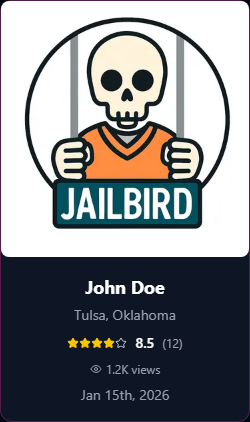
On each card in the grid, you will see a small star rating and a vote count. These reflect the community's ratings so far. To add your own vote, you need to open the full detail page.
Step 2: Open the Rating Panel
On the mugshot detail page, look for the "Click to Rate" button. It has a purple-to-pink gradient background and a small heart icon. You cannot miss it.
Click that button and a rating panel pops open directly below it. This panel contains everything you need to submit your vote.
Step 3: Pick Your Rating (1 to 10)
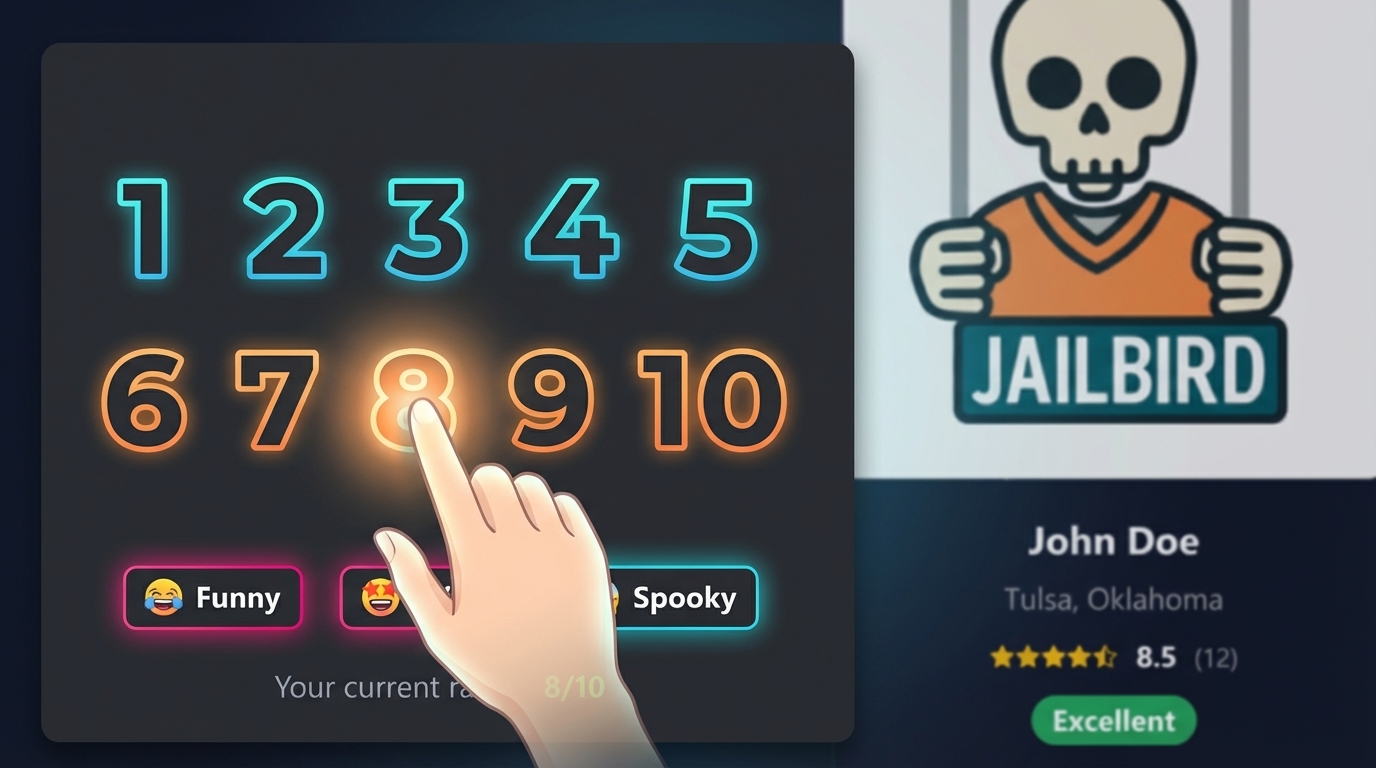
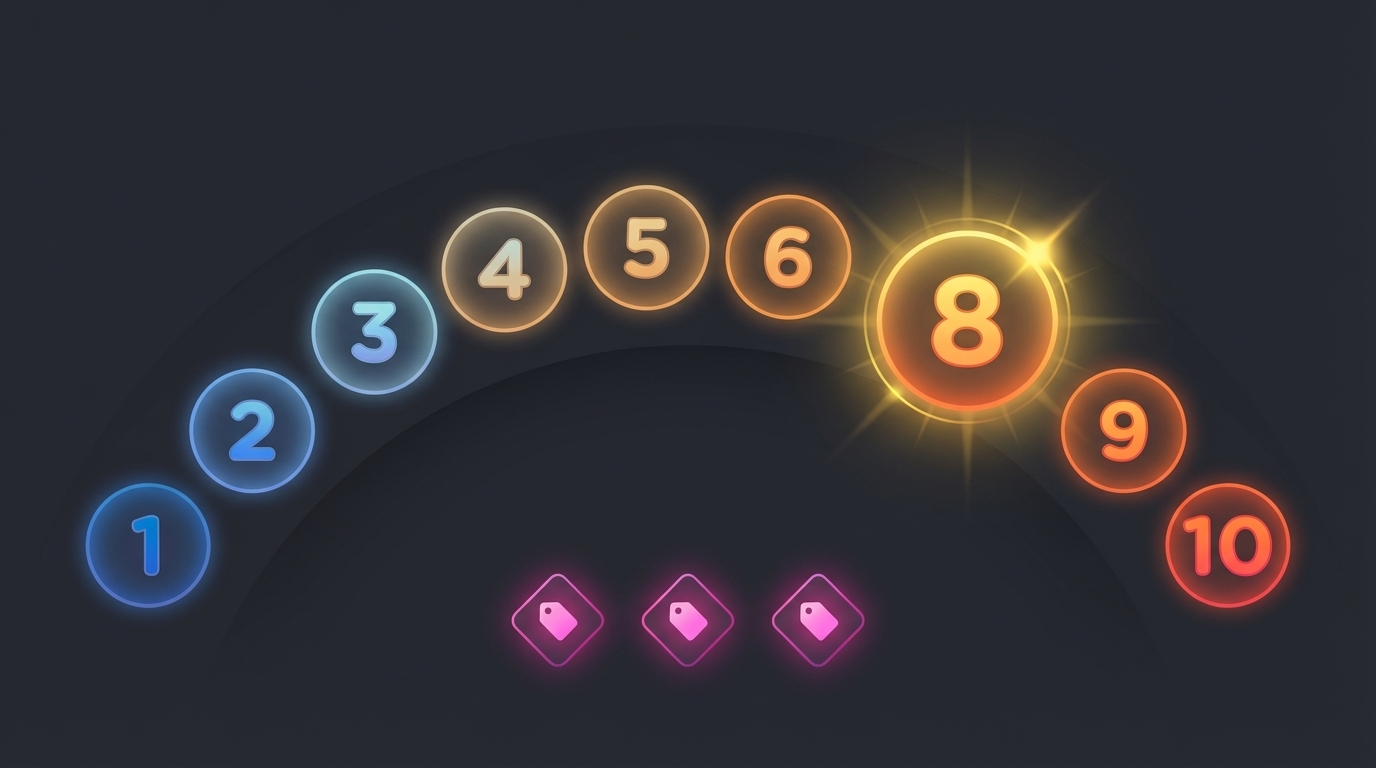
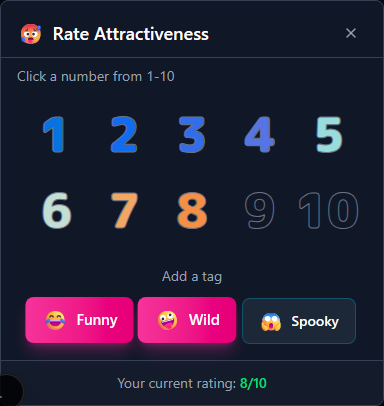
Inside the rating panel, you will see ten numbered buttons arranged in two rows of five. Each number from 1 to 10 has its own color:
- 1 through 3 — Blue tones (lower end of the scale)
- 4 through 6 — Green and yellow tones (middle of the scale)
- 7 through 10 — Orange and red tones (higher end of the scale)
Simply click the number that matches your impression of the mugshot. Your rating is saved the moment you click — there is no separate "submit" button. The number you picked lights up with a bright color gradient so you can always see which rating you chose.
At the bottom of the panel, a small line of text confirms: "Your current rating: X/10".
Step 4: Add Tags (Optional)
Below the number buttons, you will see three tag buttons:
- Funny (with a laughing face)
- Wild (with a zany face)
- Spooky (with a scared face)
Tags are completely optional. They let you add a little extra flavor beyond just a number. Think of them as quick labels that tell other users what vibe the mugshot gives off.
Each tag works as a toggle. Click it once to add the tag, and click it again to remove it. When a tag is selected, it switches to a pink gradient so you can easily see which ones are active. You can select one, two, or all three tags on the same mugshot.

Step 5: Change Your Rating Anytime
Changed your mind? No problem. Open the rating panel again on the same mugshot and click a different number. Your old rating is replaced with the new one instantly. There is no limit to how many times you can change your vote on a single mugshot.
The same goes for tags. Open the panel, toggle tags on or off, and your selections update right away.
Understanding What You See: Scores, Badges, and Trends
After you vote, you might notice a few things on the mugshot page. Here is what they all mean.
Average Rating
Every mugshot with enough votes displays an average rating — a large number out of 10. This is the simple average of all votes from every member who has rated that mugshot. Every single vote counts equally.
Next to the average, you will also see the total number of votes the mugshot has received.
Quality Badges
Once a mugshot has received at least three ratings, a colored badge appears next to its score:
- Excellent — Average of 8.0 or higher. This mugshot is a community favorite.
- Good — Average between 6.0 and 7.9. Above average and getting attention.
- Mixed — Average between 4.0 and 5.9. Opinions are split.
If a mugshot has fewer than three ratings, you will see "Not enough ratings" instead of a badge. This makes sure one or two early votes do not unfairly define a mugshot's reputation.

Trending Indicator
When a mugshot reaches 20 or more ratings, a "Trending!" badge appears with a fire icon. This simply means a lot of people are voting on it. It does not affect the score — it just highlights popular mugshots that are getting a lot of community attention.
Card View Ratings
Back on the main grid, each mugshot card shows a simplified version of the rating: a star rating (converted from the 10-point scale) and the total vote count. This gives you a quick sense of how the community feels without needing to open every detail page.
A Few Things to Keep in Mind
Rate Limit: 10 Per Hour
To keep things fair, there is a limit of 10 ratings per hour. Under normal browsing, you will almost certainly never hit this. It exists to prevent anyone from flooding the system with votes. If you do reach the limit, you will see a message letting you know when you can rate again.
Your Votes Are Private
Nobody can see what rating you gave a specific mugshot. Other users only see the overall average score and total vote count. Your individual vote is completely private.
The Display Floor
You might notice that no mugshot ever shows a score below 5.0. This is by design. Even if the actual average is lower, the platform displays a minimum of 5.0 to prevent the rating system from being used to pile on or humiliate anyone. The real average is still tracked behind the scenes, but the public-facing number never dips below that floor.
For a deeper look at how ratings are calculated and why these protections exist, check out our article on how ratings work on our platform.
Quick Recap
Here is the short version of everything above:
- Sign in to your account (or create one for free).
- Find a mugshot by browsing, searching, or filtering.
- Click "Click to Rate" on the mugshot detail page.
- Pick a number from 1 to 10 — your vote saves instantly.
- Add tags like Funny, Wild, or Spooky if you want.
- Change your vote anytime by opening the panel again.
That is all there is to it. Your votes shape the community rankings, help surface the most talked-about mugshots, and contribute to the badges and scores everyone sees. Happy voting!