
Whether you're curious about a recent arrest in your area or want to look up someone by name, America's Top Mugshot makes it easy to search and browse mugshots from across the country. You don't need any special skills or accounts — just head to the site and start searching.
This guide walks you through every search and filter option available on the Mugshots page, step by step. By the end, you'll know exactly how to find what you're looking for, narrow your results, and even share your search with others.
Getting Started: The Mugshots Page
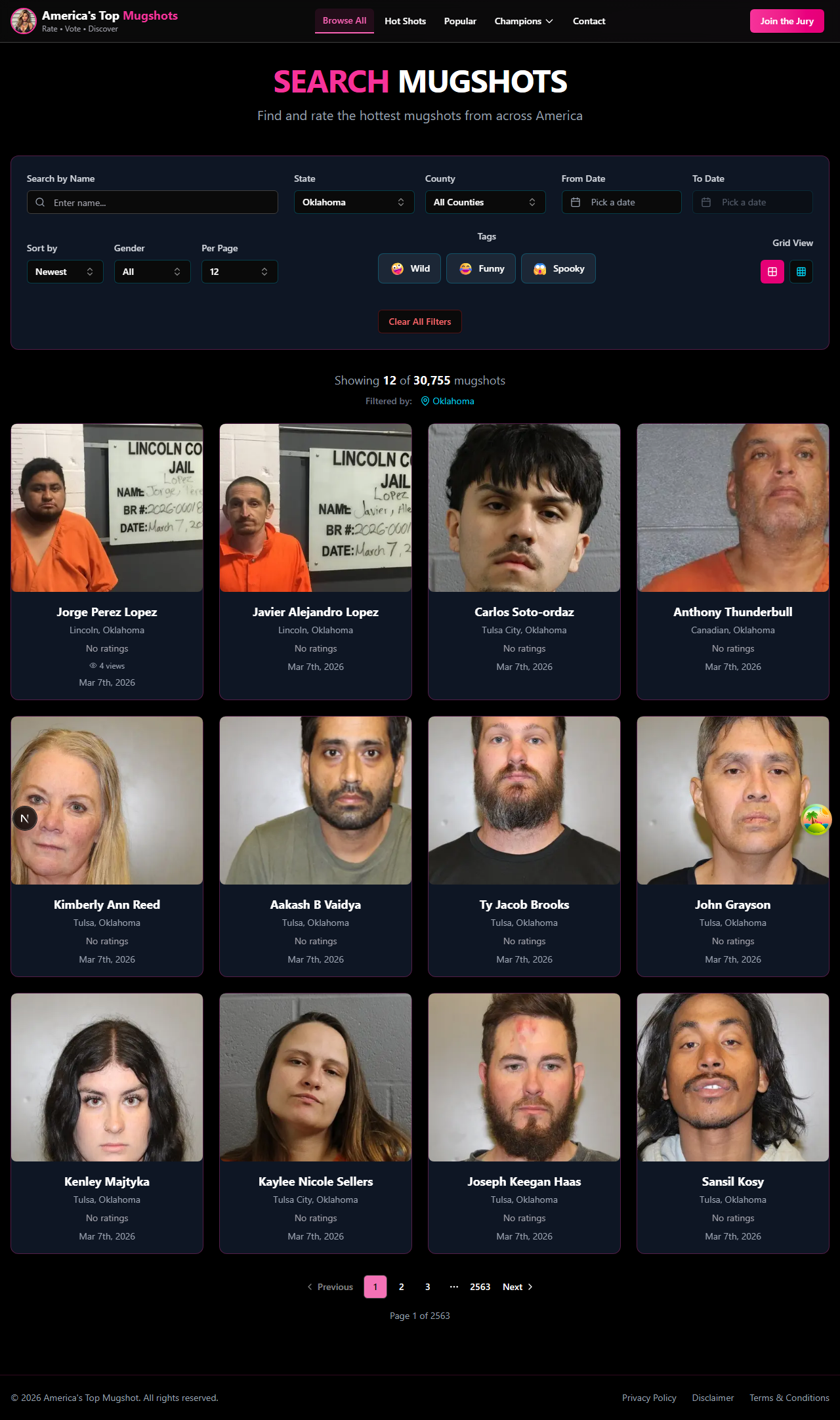
Everything starts on the Mugshots page. When you first visit, you'll see a grid of mugshot photos along with a panel of search and filter options. If you're on a phone, the filters are tucked away behind a button — just tap it and a panel slides up from the bottom of your screen.
One helpful feature: the site automatically detects your general location when you first visit. That means your state may already be selected in the filters, so you'll see local results right away. You can always change it to any other state or clear it to browse everything nationwide.
Step 1: Search by Name or Keyword

At the top of the filter panel, you'll find a search bar. This is the fastest way to find a specific person. Simply type in a first name, last name, or both and the results will update to show matching mugshots.
You can also type in keywords if you're not looking for a specific person. For example, searching a common last name will bring up everyone with that name in the system.
Tips for better name searches:
- Try the full name first (e.g., "John Smith") for the most precise results.
- If you don't get results, try just the last name — spelling variations or middle names can sometimes cause mismatches.
- The search isn't case-sensitive, so "john smith" works just as well as "John Smith."
Step 2: Filter by State
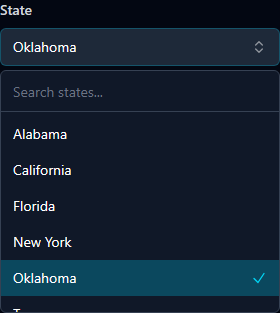
Below the search bar, you'll see a State dropdown. Click or tap it to open a list of all 50 US states. Select any state and the results will instantly refresh to show only mugshots from that state.
If you want to see mugshots from everywhere, choose "All States" at the top of the list. This removes the state filter entirely.
Remember, if the site detected your location on your first visit, your home state may already be selected. You can change it anytime.
Step 3: Narrow Down by County
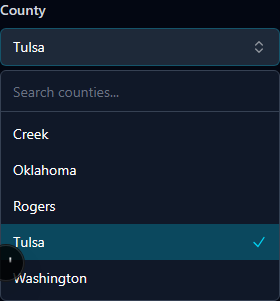
Once you've picked a state, a second dropdown appears: County. This lets you drill down even further to a specific county within that state.
Important: You need to select a state first before the county dropdown becomes available. This is because the county list changes depending on which state you've chosen — selecting Texas shows Texas counties, selecting Florida shows Florida counties, and so on.
If you want to see all counties within your selected state, just leave the county dropdown on its default setting.
Step 4: Set a Date Range

Want to see mugshots from a specific time period? The date range filter lets you do exactly that. You'll see two calendar pickers:
- From Date — Pick the start date for the range you want to search.
- To Date — Pick the end date. This one stays grayed out until you set a From Date first.
This is useful if you're looking for recent arrests (set the From Date to a week ago) or mugshots from a particular month or year. The results will only show mugshots with booking dates that fall within your chosen range.
Step 5: Filter by Gender

You'll see three toggle buttons for gender: Female, All, and Male. By default, "All" is selected so you see everyone. Tap "Female" or "Male" to limit results to just that gender.
This is a quick toggle — just tap once to select, and tap "All" again if you want to go back to showing everyone.
Step 6: Sort Your Results

Once you have your filters set, you can choose how the results are ordered. There are three sorting options:
- Newest (default) — Shows the most recently added mugshots first. This is great for staying up to date with the latest bookings.
- Top Rated — Shows mugshots that have received the highest ratings from the community first.
- Most Viewed — Shows the most popular mugshots based on how many people have looked at them.
Sorting works alongside all your other filters. So you can search for a name in a specific state, sorted by top rated — all at the same time.
Step 7: Adjust Your View

At the top of the results area, you'll find a couple of options to customize how you browse:
Grid size: Toggle between Large (the default, showing bigger photos) and Compact (showing more mugshots per row in a smaller format). Compact view is great if you want to scan through a lot of results quickly.
Results per page: Choose how many mugshots appear on each page — 12 (default), 24, or 48. If you're browsing casually, 12 keeps things manageable. If you want to see more at once, bump it up to 48.
Step 8: Navigate Through Pages
Below the results grid, you'll see page navigation. Use the Previous and Next buttons to move between pages, or click a specific page number to jump directly to it.
The total number of results and pages is shown so you always know how much is available for your current search.
Sharing and Bookmarking Your Search

Here's a handy feature many people don't realize: every filter you apply is reflected in the page's web address (the URL in your browser's address bar). That means you can:
- Bookmark your search — Save a filtered view to come back to later. Next time you open that bookmark, all your filters will be right where you left them.
- Share with others — Copy the URL and send it to a friend or post it on social media. When they open the link, they'll see the exact same search results and filters you set up.
This works for any combination of filters — name, state, county, date range, gender, sorting, and even tags. Everything is preserved in the link.
Searching on Your Phone
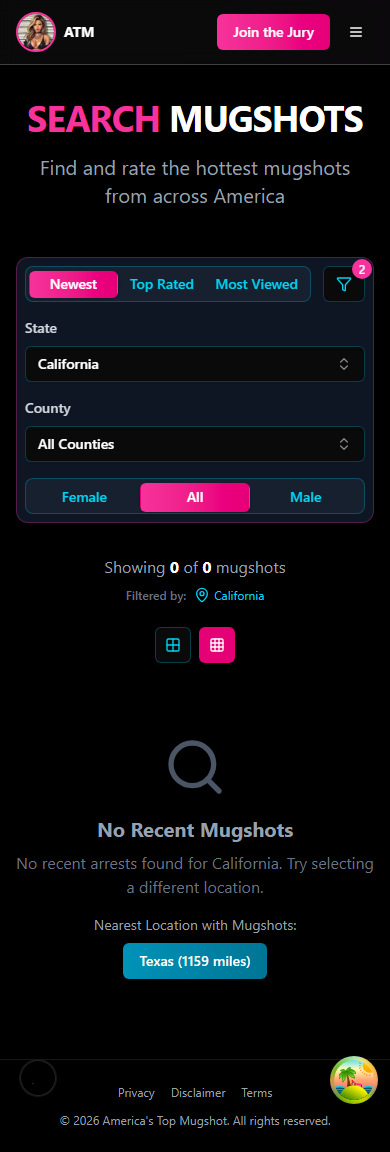
If you're browsing on a phone or tablet, the experience is slightly different but just as easy. Instead of seeing the filter panel on the side, you'll see a filter button. Tap it, and a panel slides up from the bottom of your screen with all the same options — search, state, county, date range, gender, sort, and tags.
Make your selections, then tap outside the panel or swipe it down to close it and see your filtered results.
Quick Tips for Better Results
- Start broad, then narrow down. Begin with just a state or a name, then add more filters if you get too many results.
- Use the date range if you know approximately when a booking happened — it cuts out a lot of noise.
- Try different sort options. Switching to "Top Rated" or "Most Viewed" can surface interesting mugshots you might have missed.
- Combine filters freely. Every filter works with every other filter. Search by name within a specific county during a date range — it all works together.
- Check out tags too. If you're in the mood to browse by vibe, learn how to use tags for a different way to explore.
What's Next?
Now that you know how to search and filter, you're ready to explore everything America's Top Mugshot has to offer. If you want to learn more about browsing by mood or vibe, check out our guide on how to use tags and filters. Happy browsing!